Debug Error Messages
Hit an error you do not recognize? Screenshot it and ask AI to explain the cause and suggest a fix. No copy-pasting stack traces.
One click captures your screen. AI analyzes it instantly. Debug errors, read receipts, understand charts - from what you see.
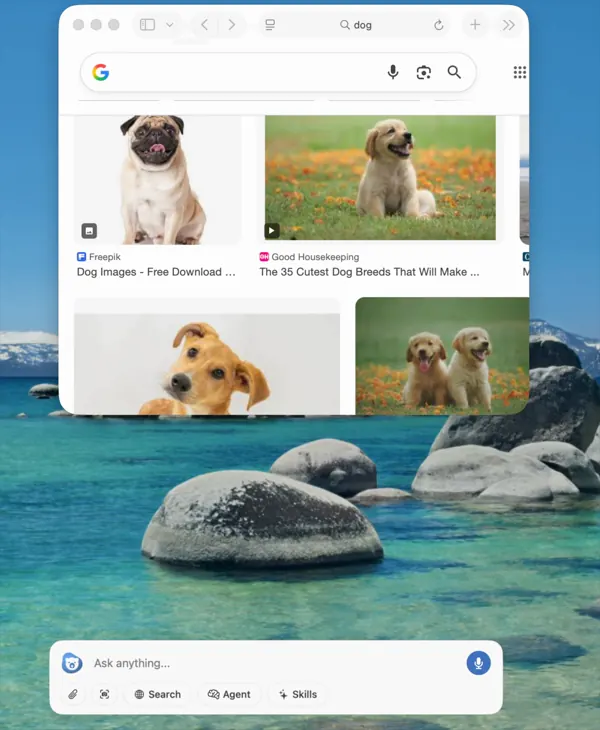
In the input bar, click the screenshot button. Chapeta's panel slides away to give you a clean capture.
Your full display is captured instantly. The panel reappears with a thumbnail preview of what was captured.
Type your question - or just send it. The AI sees everything on your screen and responds with analysis, extracted text, or explanations.
Hit an error you do not recognize? Screenshot it and ask AI to explain the cause and suggest a fix. No copy-pasting stack traces.
Capture a chart from a dashboard or spreadsheet. Ask AI to explain the trend, identify outliers, or summarize the data in plain English.
Screenshot a receipt or invoice. AI extracts the vendor, date, total, and line items without manual data entry.
Confused by a settings screen or dialog? Capture it and ask what each option does. Works with any app on your Mac.
Screenshot text you cannot select - PDFs rendered as images, slides, embedded graphics. AI reads and returns the text.
Capture two states of a UI and ask AI what changed. Useful for design reviews, A/B comparisons, or spotting regressions.
Screenshot analysis works with every model that supports vision input. GPT, Claude, Gemini, and dozens more. Chapeta marks vision-capable models in the model selector so you always know what works.
See All Models →